Sometimes a website is almost right, but not quite to your liking. Maybe an element is out of place, the colors feel wrong, or the font just doesn’t work for you. I run into that a lot.
If you want to make a site feel more personal, a browser extension can be a solution. There are already such tools, but I was always curious about how to implement one.
More for the joy of tinkering, but also seeing the steps it takes to get your extension listed. And maybe to keep control of my own code and keep external libraries to a minimum.
So I built a minimal solution: the cucss (CustomCSS) extension. Ok, naming things is not my forte.
Use cases
Curiosity was part of it, but the real trigger was this site where I learned German. The video wasn’t framed well, and I wasn’t happy with how it looked.

Here is how it looks after applying the custom CSS.
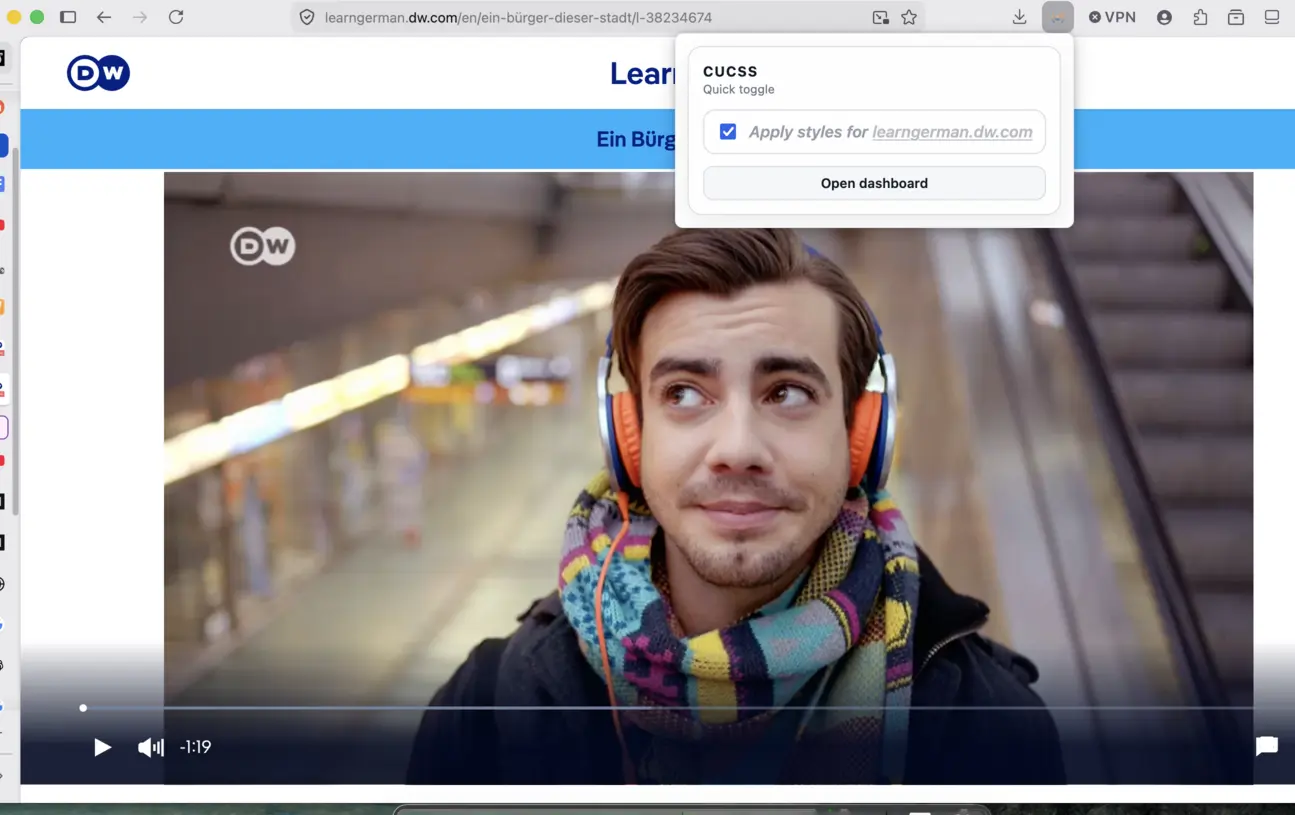
I decided to implement my own solution instead of using an existing one like Stylus, and it turned out to be a pleasant side project.
The cucss extension
CuCSS is a lightweight browser extension for applying your own CSS to any site. It is meant for small UI tweaks that make pages feel more personal.
It stores your styles locally in browser storage (based on the Web Storage API).
It displays a popup with a quick on/off toggle for the current site. A dedicated dashboard page provides a full CSS editor (powered by CodeMirror). Even though the styles are stored internally, you can also export and import them, making it easy to move them to another machine or setup.
You can check the code yourself before you run it:
https://github.com/panacotar/cucss
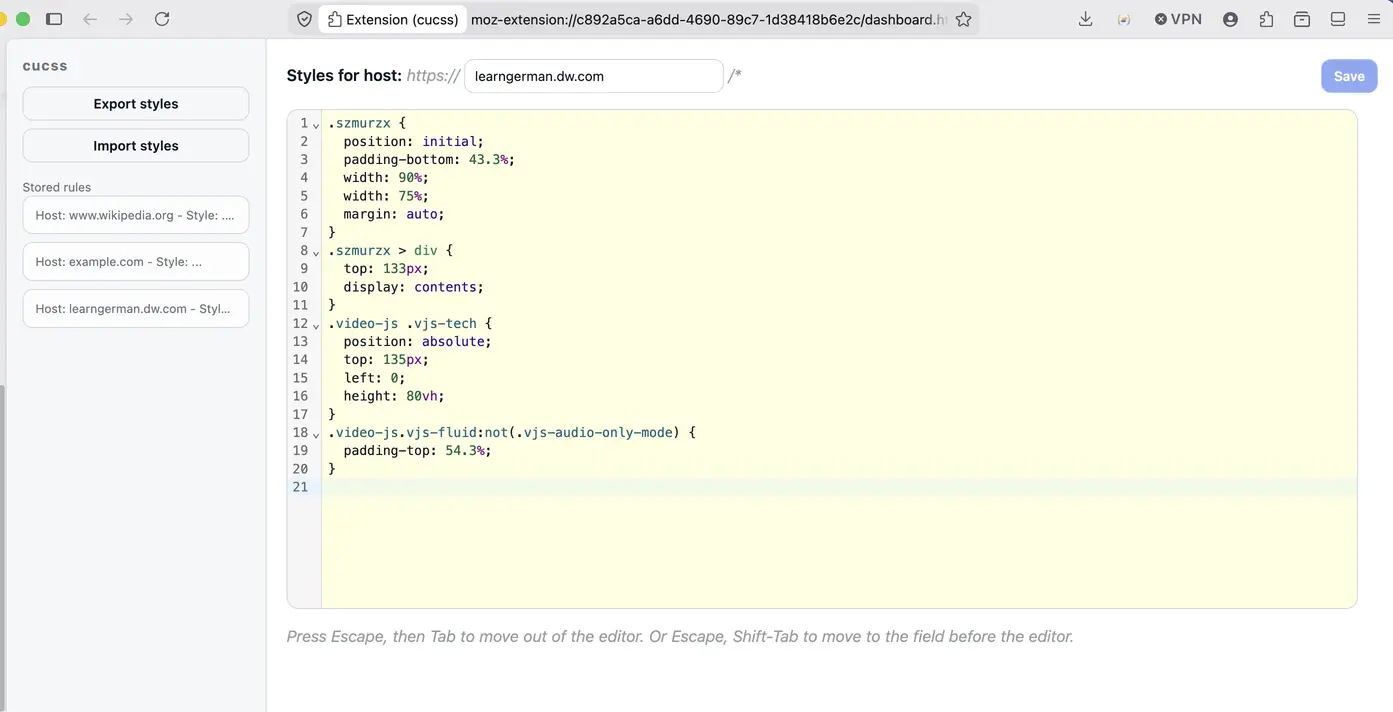
The extension uses Manifest V3 and relies on these main ingredients:
- a site-wide content script (
content_scriptswithmatches: ["<all_urls>"]) handles injection, - a toolbar UI is provided via the extension action popup (
action.default_popup) - it requires the
"storage"permissions (as of this writing)
Requirements for an extension
I was surprised by how minimal an extension can be.
The soul of an extension is the manifest.json file. This is the only file that every extension must define (based on WebExtension APIs). It contains important details on the extension like name, version, permissions required, etc. There are many options you can define in the manifest, some shared across browsers while others are browser-specific.
Firefox requires these manifest.json fields to be defined:
manifest_versionnameversion-
browser_specific_settings- required since November 3, 2025
Additional notes on manifest.json
Depending on what the extension is meant to do, you can combine different browser features.
Here is a quick list of building blocks:
-
action- the extension’s button that is added on the toolbar. It has an icon and may have a popup, that is an HTML/CSS/JS content with additional actions. If no popup is provided, the click event is dispatched to the background scripts -
background- it can be a script or page and it enables you to handle different events in the browser (navigation, bookmarks, tab actions, etc). It can be either persistent (throughout the extension’s lifecycle), or non-persistent (event pages) - loaded when needing to respond to an event and cleaned up once they become idle -
content scripts- the part of the extension that runs in the web page context. It can modify page content (via the standard WebAPIs). By default, a small subset of those APIs, but they can call home to the background scripts and can (indirectly) access more Web APIs. There are various ways to load them, but that’s out of scope for this article -
permissions- an array with keys that enable your extension to access more powerful WebExt APIs (e.g.storage). A similar concept to mobile apps, permissions are requested just after installation. You can test it by following these steps. Most extensions will show this message in Firefox on installation “Access your data for all websites” which can be concerning for users, here are some suggestions to handle this better - and more
The Firefox addon
The addon is now live on Firefox, which felt like a nice final step after building it from scratch. Getting it there was part of the fun too.
I may bring it to other browsers later, but even as it is now, it already does exactly what I wanted.
If you’d like to try it, it’s here.